Wednesday, 19 February 2014

How to get Google apps (Gmail, Maps, Chrome and more) on Xiaomi's phones

Have you heard of Xiaomi? 

- The company was founded just 4 years ago.
- It sold close to 20m smartphones in its third year, bringing the total number of MIUI users to 30m (MIUI is the name of the Android version modified by Xiaomi).
- Google's VP for Android even joined Xiaomi in August 2013.

While Xiaomi's phones were mostly sold in China (with some in Taiwan and Hong Kong) so far, 2014 will be the start of international expansion, starting by Singapore with its S$169 Redmi (named Hongmi in China).

The latest smartphone from Xiaomi is Mi3, a powerful 5" smartphone with a weight of just 145g (more specs on Xiaomi). Opening the packaging looks like this:

The hardware is great. However, as an international user with no Chinese reading ability, the first thing I wanted to do was to install the Google apps to access my Gmail, Maps, and others.

Where are Gmail, Google Maps and the other Google apps?

The apps themselves are not available on the Xiaomi market. Searching for "Google" brings results such as below:

The first result, by Eric Xiang (and marked installed on my screenshot), is a Google Installer. It's basically an app which gives access to the Google apps.

Going Google on Xiaomi

Once installed, open the app and scroll down to access the Google Play one.
While installing, it will prompt to install dependencies, which you have to accept.

With Google Play now installed, you can sync your Xiaomi with Google Accounts and access all the apps from the store, including Gmail, Google Calendar, Google Drive, Google Keep, Chrome... I added around 15 Google apps.


Solving the Google Contacts sync

One problem I had after the install was the inability to sync my Google Contacts. While it should be in the Google account settings for sync (accessed from Settings > Accounts > Google), the 'Contacts' line was simply not there for me.
Sync settings for Google accounts in Android. At first "Contacts" was not available for me.

The solution was to go back to the Google Installer, and manually install the app looking like a contacts card (The third app in the screenshot below, marked 'installed'). 


I had no issue for Calendar sync or any other service. I would have saved time if the Google Play installer contained this contacts sync as part of the dependencies.

Step by Step guide to install Google services on Xiaomi MIUI

  1. Search for "Google" in the Xiaomi market
  2. Install the "Google Installer"
  3. Open the Google Installer
  4. Install Google Play, accepting the dependencies proposed.
  5. Set up your Google account(s) in the Android settings
  6. Enjoy Google Play for your usual apps.
In case of issues:
- While installing Google Play and its dependencies, you might have to check the boxes "I trust this app"
- For Google Contacts sync, you might have to separately install a Google Contacts sync app from the Google Installer app.

Hopefully, this is just a hack before a native install of Google apps... which would help Xiaomi's development outside of China.


Monday, 13 January 2014

Your guests will love you for doing this. Or how to set up your wifi and get good karma.

What do you do first when you arrive at someone's place?

"Hello" ?
hmm, old school.

"Where are the beers?" ?
hmm, a bit rude in most cultures.

"Dude, what's your f****** wifi password?" ?
You're a geek, I like you!

And 52.4% of the time, you are set to find a 10+ characters string to connect to the local wifi. Then to type it - lowercase, uppercase, weird characters - in your iPhone, Android, laptop and other connected devices.

(Then you say "hello" to your friend, their partner, their dog, their cat and their fish, and you open a beer).

There should be a better way you think. The good news is... There is (for Android):


Yes, a QR code can automatically connect to the wifi network.
Anyone living in a place with a wifi network and friends sometimes crashing in their sofa would make better friends by printing their QR code right now. Once scanned, the QR code is automatically recognised by Android which proposes to connect to the network.


How to get the QR Code for my wifi network?

Go to http://zxing.appspot.com/generator. You will get your QR code in 1 minute; you just need to type your network name (SSID), password and network type (WEP/WPA?).

Is it safe?

As safe as giving your wifi password to someone. Only people who see your QR code and are within reach of your network will connect to your wifi.
Tip: Using your email or bank password for your wifi network is not a good idea.

What if my friends have no QR code scanner installed on their phone?

Get new friends.
Or give them a beer and enjoy your time with them.

Is that all I should do for my wifi?

This trick only works with Android, so you could please iOS fans and laptop-holder friends by choosing a password which is easy to remember and to spell.

(Update: following readers' feedback, this Q&A was added)

Sunday, 14 July 2013

Insights into The Day 23,000 Geeks Visited my Blog

"How's your blog trending?" a friend asks me. 
"Why is my blog of sudden interest to anyone?" I wonder, while opening Blogger.com to find out the answer. There I see traffic numbers much higher than I am used too.


Traffic came on my blog from around July 8th, 2pm, Singapore time, which is 11pm California time and lasted for 12 hours. The results?

23,000 visits:

A peak of 3,000 visits in 1 hour.

50% from the US
10% from the UK
5% from Germany
5% from Canada

50% using Chrome, 20% Firefox. Only 2% Internet Explorer.

11% using Android, 10% using iPhone, 4% using iPad.

The post itself got 57 Google's +1 and 39 comments (of which 4, ie. 10%, highlight that I was not very smart to upgrade the company email's system without testing it first, and 3 share that they had a similar experience.)

Seeing this bump in traffic, I quickly updated the layout of the blog to bring a link to my company's website, Flocations.com, at the top, crossing fingers to get some attention there. And it did: 400 visits to Flocations.com came from the blog over the period (Let's note that this traffic was not targeted at the audience of Flocations so there is no conversion), that's around 2% of the blog visitors.


Tuesday, 28 May 2013

How Upgrading to Google Apps for Business Killed my Company's Email!


"I got logged out of my Flocations email. What's happening?" Kat, our intern Extraordinaire, asks me with mix of sadness and panic in her eyes.

My heart rate had just spiked as I had the same issue and was silently hoping it was limited to only my account. Unfortunately no, the problem affected the whole team. What happened?

I had finally clicked this f%&cking "Upgrade Now" button that Google had shown me ever since we started using Google Apps. I had personally dreamt of paying Google for their service because they have been my internet lifeline for years. Today was the day this dream would come true.

Not.

I wanted Google Apps for Business. Here is what I got:

Gmail not enabled for Flocations.com? My team has been using it for 2 years!
But you kicked us out once we wanted to pay you!

Flocations started using Google Apps in April 2011. Two years later, today, we have a new hire coming, so I simply wanted to create one more Google Apps account.

However, since the team had been growing, we had reached the limit of 10 users allowed by the free version. Not a big issue I thought; I will just click this big F%&cking 'Upgrade Now' button to create the additional account.

The F%&cking 'Upgrade Now'  button. Upgrade and (maybe) get your company's email, or not.


Upgrade made easy: No need for a credit card and no commitment beyond the 30 days trial.
Upgrading to the paid version is obviously innocuous and simple.


After filling out the form, and having seen no message that upgrading could cause any downtime, I saw the following:

Dude, where's my data?

The quota used by our users went down to 0… only slightly scary when all your company's emails are on Google Apps.
Then my business Gmail logged me out.
Then my intern came to me.
Then an another team member.
Then, another again.
The whole team had been kicked out of their company's email.

Panic.

Smile.

All is under control, I can still Google. Search that is.

Ok, there might be a delay after upgrading to the paid version: 72 hours… to get additional storage!
But, I now have 0 storage. I just want my PREVIOUS storage. Please!

Maybe I f%&ked up?
The FAQ does not mention that upgrading includes a we-don't-know-what-will-happen period:
"Will my team lose access to Google Apps for several hours after giving money to Google?"
Probably yes. Do you care? We don't.


I called Google Support at their-oh-my-gosh-top-secret-support-phone-number, and talked with Max:
- "uninstall Gmail and re-install it" he told me.
- "are you sure? I will not lose any data?"
- "no. got for it"?
- "really, it says it will delete the data in 30 days... "
- "It should be fine"
Fingers crossed. Click.

Nothing. I still have no Gmail and 0 storage.

- "Max, it did not work. What do I do now?"
- "Hmm... It's a known problem. It can take up to 24 hours."

AAAAAAAAHHHHHHHH

The team looks at me. Not happy. I smile. I am French.

- "Max, can you repeat that please?"
- "Try again in half an hour. Sometimes it helps."

We gave up. I don't really like Max.

One hour later, I'm trying to work through this the French way, with red wine and pastis.
My phone rings, Claudia from Google Ireland wants to talk to me.

Well, she wants to talk to me after she reads a Google disclaimer that our call is being recorded (for the well-being of the world).

After I confirmed I am all for the well-being of the world, she gives me the magic solution: uninstall Gmail and re-install it.
Been there, done that.

Larry Page, why the f%&k are you doing this to me???

After 6 hours, 8 frustrated employees, and 2 customer appeasement phone calls Gmail is finally back online for Flocations. It seems that there was nothing to do. Just to wait. Not sure that's better.

Be careful when you upgrade to the paid version Google Apps! You might have the same issue.

Sunday, 16 December 2012

Apple vs. Google Maps in one Search

Apple Maps or Google Maps? One search gives me the answer:


While Google Maps finds Bali in Indonesia as expected, Apple Maps sends me to ... India!!!

Sunday, 30 September 2012

iPhone 5 is now available in 26 countries: HK is still the cheapest

Apple released the new iPhone 5 in more countries on September 28. The comparator of iPhone prices around the world now includes them.

The US still don't have an unlocked iPhone, hence the visible price is not comparable (it goes with a contract).
Canada is the cheapest then, but that's before Sales Tax that are added while ordering, depending on the shipping address in Canada.
Hong Kong has no Sales Tax or equivalent, therefore the visible price is the one accessible to customer, and the cheapest in the world!

The comparator now includes a currency selector for everyone to be able to choose the currency they are confortable with to do the comparison!

Logistics always amazes me: Fedex holds on delivery for 44 hours to be on time!

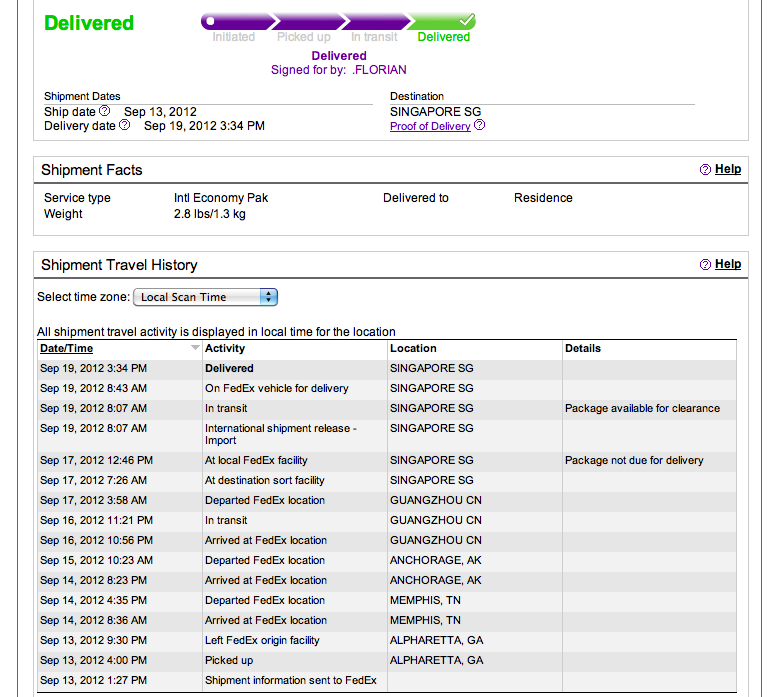
Having ordered a product from the US, shipped on Thursday, September 13th, it was delivered to me 5 business days later, on Wednesday, September 19th, in Singapore.
That's exactly what was expected and paid for with Fedex International Economy (US$ 36.88 in this case).

The interesting part is that the package was actually in Singapore 2 days before delivery, Fedex keeping it on hold for 1 day and a half.

Why?

I believe that it is because I did not pay the additional US$3.90 of the Fedex International Priority service, which guarantees a 3-day delivery.

For 44 hours, my package remained in the warehouse, not to be delivered earlier than expected.